Blocks and links
Your page is a stack of blocks. A block is one thing: a link, a heading, an embed, a form that takes an email address. You add blocks, you put them in an order, and the page updates while you work. There are twenty-five types across five shelves, and all but five of them are on the free plan.
How the editor itself works is in the Studio. This page is about what you can put on the page.
Adding a block
Use Add block at the end of the list, or Add in the Blocks header.
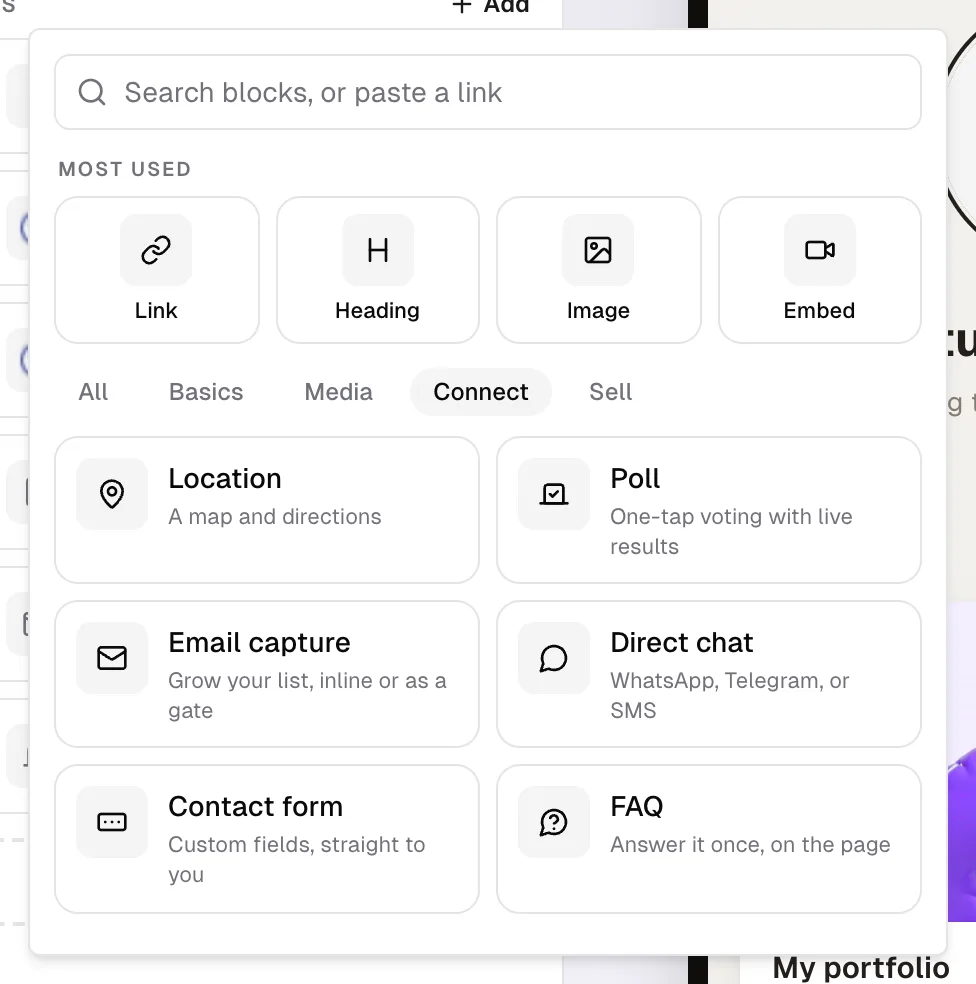
The picker opens on Most used, the four blocks people reach for: Link, Heading, Image, and Embed. Under them are the shelves, All, Basics, Media, Connect, Integrations, and Sell, each block with a line saying what it does.
Search blocks, or paste a link does two jobs. Type and it matches names, descriptions, and synonyms, so "newsletter" finds Email capture and "youtube" finds Embed.
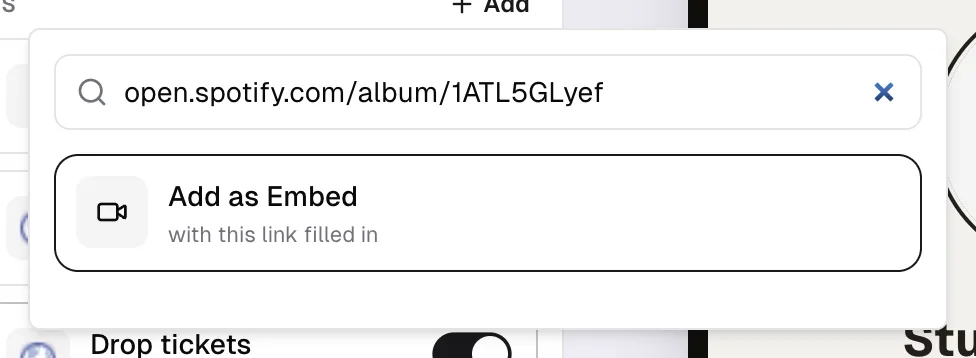
Paste an address instead and a row appears at the top of the results offering the block that fits, already filled in: "Add as Embed", "Add as DIY Stubs", "Add as Image", or "Add as Link". A YouTube address becomes an embed, a picture address becomes an image, a DIY Stubs event becomes a DIY Stubs block, and anything else becomes a plain link.
Blocks that need Pro carry a small Pro chip next to their name. They are not greyed out of reach: tapping one opens the plans panel and says which block you were reaching for.
A new block lands at the bottom of the page and opens in the inspector straight away. To put one somewhere else, right-click or long press an existing block and choose Add above or Add below.
Cmd+K adds any of the twenty-five without your hands leaving the keyboard.
Drafts
A new block stays a draft until it has the one thing it cannot work without: a link needs a valid URL, a heading needs text, a poll needs two options, a countdown needs a date. The block list says Needs and then that thing, and the block never reaches your public page. Fill the field and it publishes itself, with no further action from you.
Four types publish the moment you add them, because they need nothing to work: divider, group, email capture, and contact form.
Basics
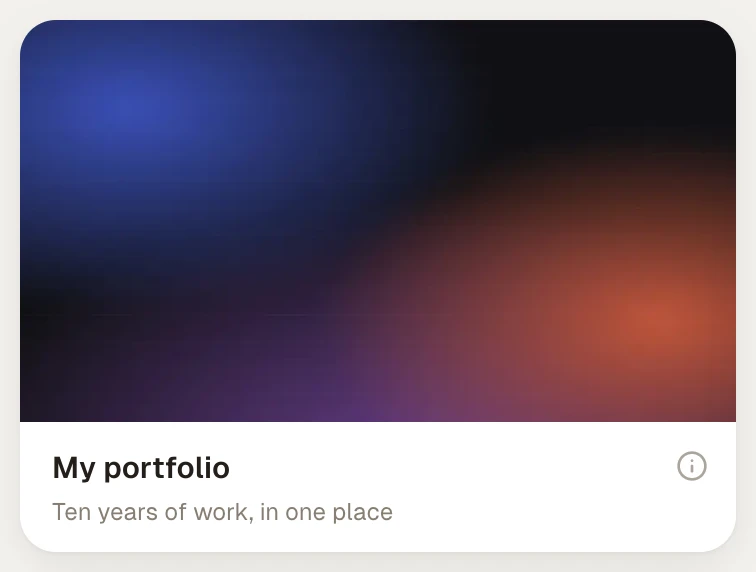
- Link. A button to any URL. The Look row decides its shape: Button, today's row, with the Icon row giving it the destination's own favicon or a picture of yours; or Card (formerly Spotlight), a picture across the top with the title under it. A Card starts with the destination's own picture, the same one you see in its details preview, so switching to it is one tap and nothing to upload. Upload under Cover puts your own picture there instead, cropped to 16:9, and Remove hands it back to the site's. Subtitle is the line under the title; leave it blank and the card shows the site's address. Switching back to Button keeps the picture, so switching again restores the card.
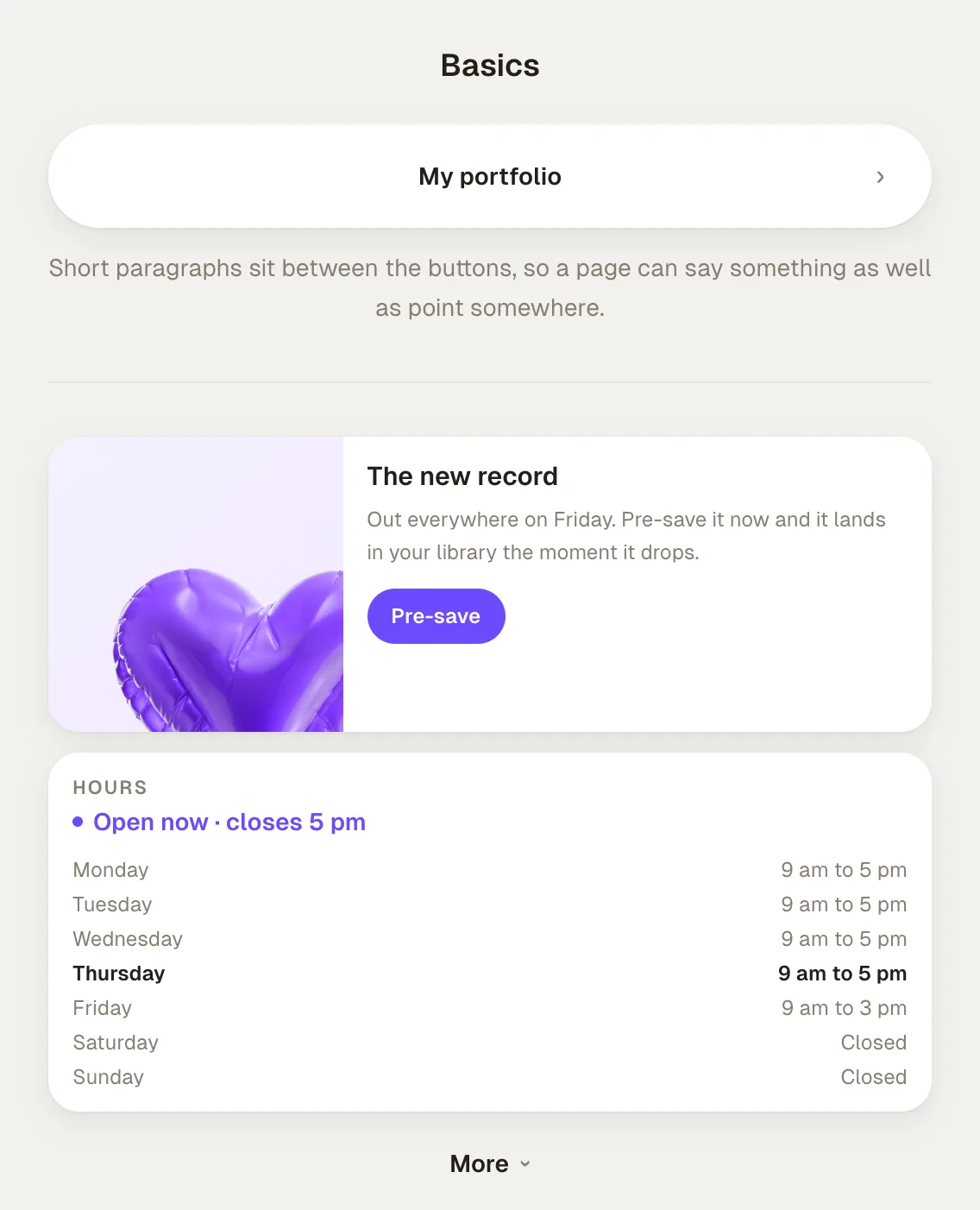
- Heading. A section title.
- Text. A short paragraph.
- Divider. A rule or blank space. The Invisible spacer switch turns the rule off and keeps the gap.
- Section. A container other blocks sit inside, arranged as a stack, a grid, or a carousel, and optionally folded. It starts life titled "More". See sections. (This block was called Group, and still is in every place your page already uses it. Only the name changed.)
- Hours. When you are open, with a line at the top saying whether you are open right now. Set one timezone for the block and everything is worked out on your clock, not the visitor's, so somebody reading from another country is told the truth. Each day takes a closing switch and up to two stretches, which is what a lunch break looks like, and a close at or before the open reads as past midnight. Copy Monday to weekdays fills the rest of the working week in one click. Exceptions take a date and a name, "Christmas Day", and either shut the day or give it different hours; they win over the week.
- Feature card. A picture, a note, a button. For the thing that deserves more room than a link row but less than a whole section. The image sits on top in 16:9, or beside the words as a square on anything wider than a phone; phones always stack. Blank lines in the body start new paragraphs. The heading doubles as the block's name in your list.
Media
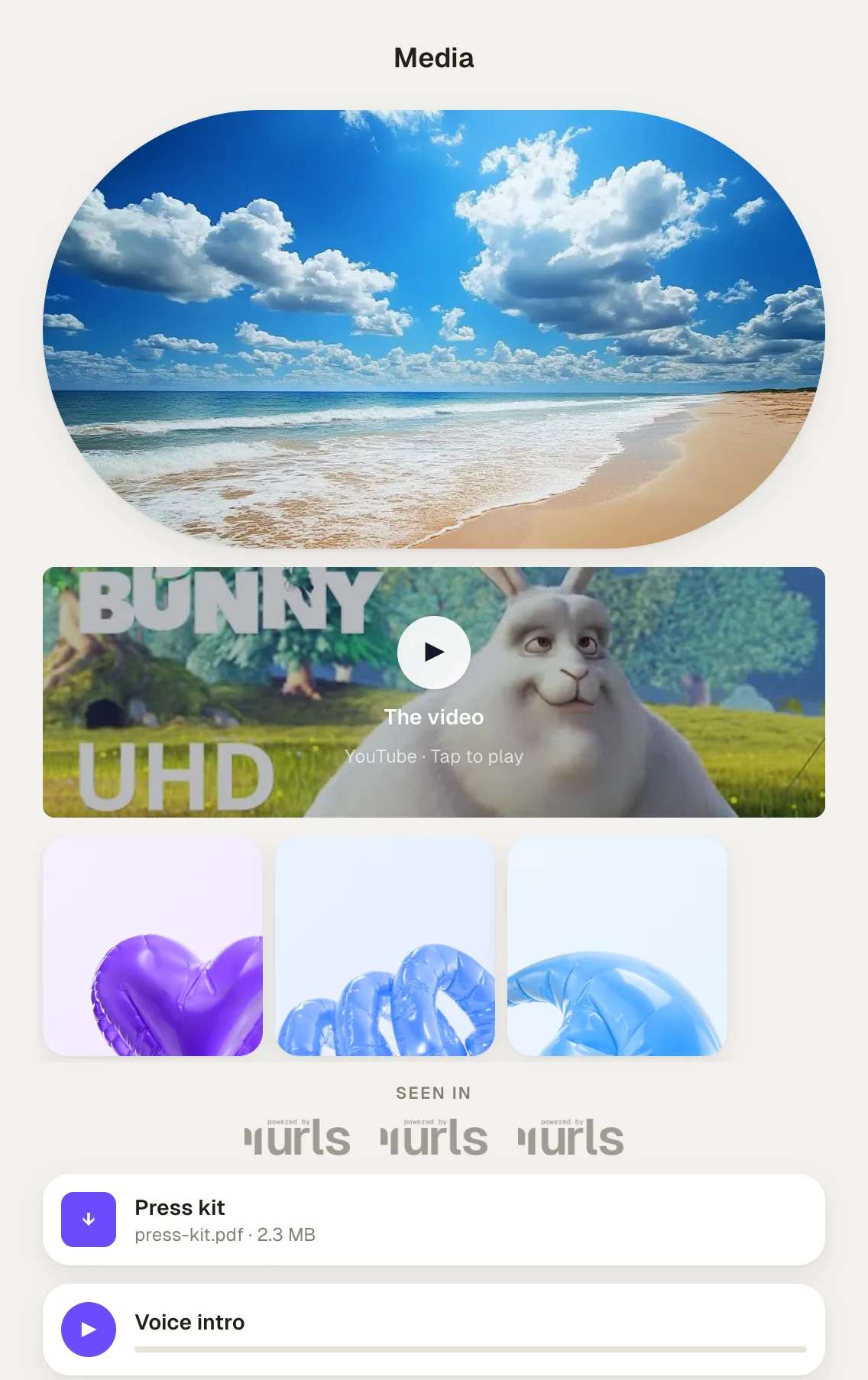
- Image. A full-width picture. Upload one, or paste an image address.
- Embed. Twenty services that play, book, or fill in on your page. Covered below.
- Release. Your song on every streaming service, from one link. Paste a link from Spotify, Apple Music, YouTube Music, SoundCloud, Bandcamp, Tidal, Deezer, Amazon Music or Audiomack, and urls.bio finds the rest and lists them as buttons under the artwork. Covered below.
- Gallery (Pro). A swipeable image strip. Five images on Free, twenty on Pro. A gallery added on Pro keeps rendering if the plan lapses, capped at five.
- Logo strip. "Seen in" logos, up to eight, under a title you can change.
- File download (Pro). A hosted PDF or file, up to 25MB.
- Voice intro (Pro). A short audio note from you. MP3, M4A, WAV, or OGG, up to 25MB. The panel asks you to keep it under 30 seconds.
Connect
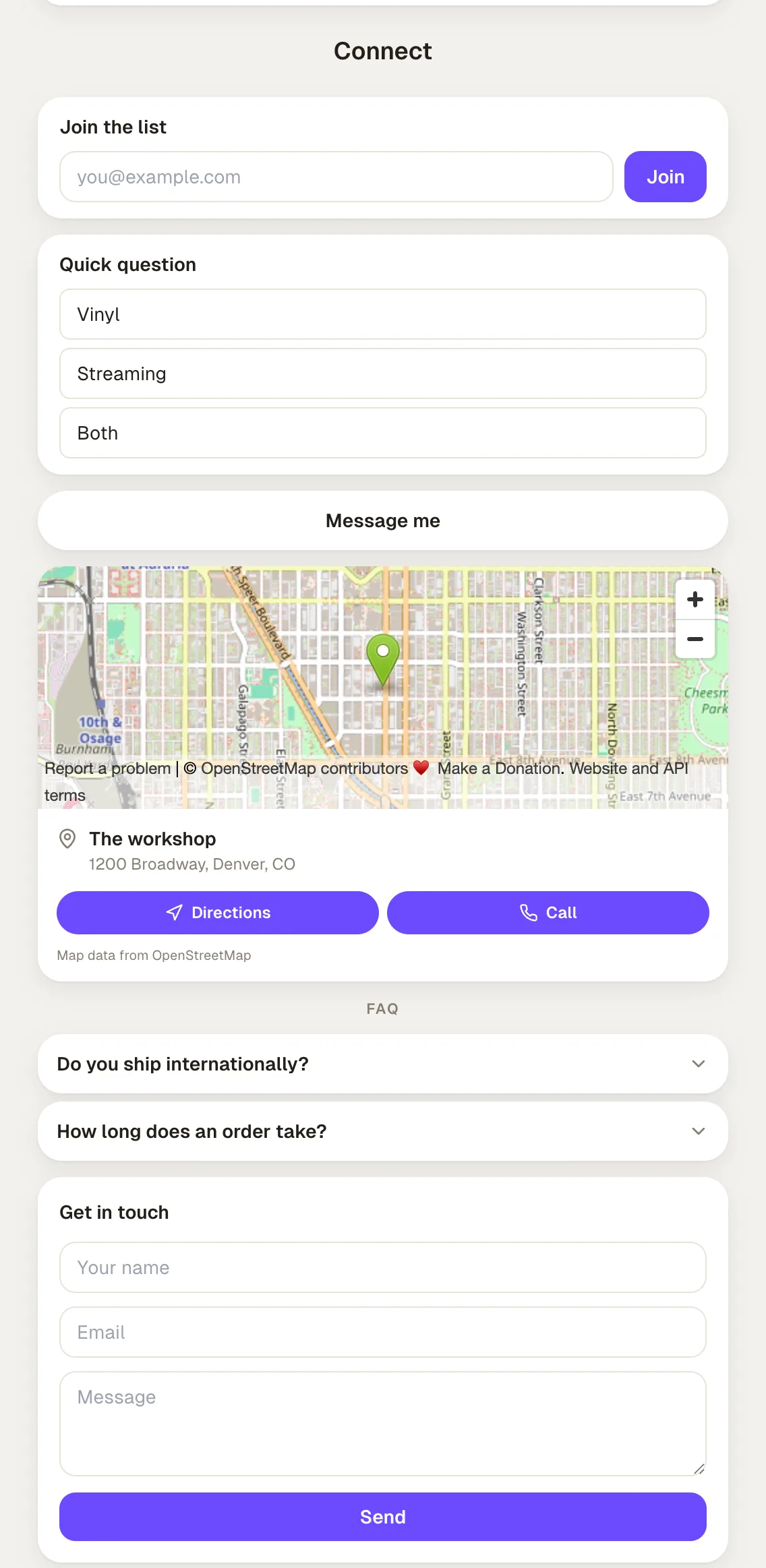
- Location. A map and directions. Type the address and urls.bio looks it up on OpenStreetMap when you leave the field, then pins the map to it. Directions opens Apple Maps on an iPhone or a Mac and Google Maps everywhere else. Add a phone number for a Call button and a booking link for a Book button. No map account and no key.
- Poll. One-tap voting with live results. Two to six options; visitors vote once and then see percentages.
- Email capture. Grow your list, inline or as a gate. Covered in email capture.
- Direct chat. WhatsApp, Telegram, or SMS, with a phone number or an @handle and an optional first message.
- Contact form (Pro). Custom fields, straight to you. Up to eight fields, each one text, email, long text, or a choice list. Set the message people see after sending, and turn on Show before the links to run it as a screen ahead of your page. Submissions land in audience.
- FAQ. Answer it once, on the page. Each question folds open on tap, one at a time unless you turn on Open several at once. Blank lines in an answer start new paragraphs. A question shows only when it has both a question and an answer. The pairs are also published as structured data, so search engines can read them straight off the page.
Sell
-
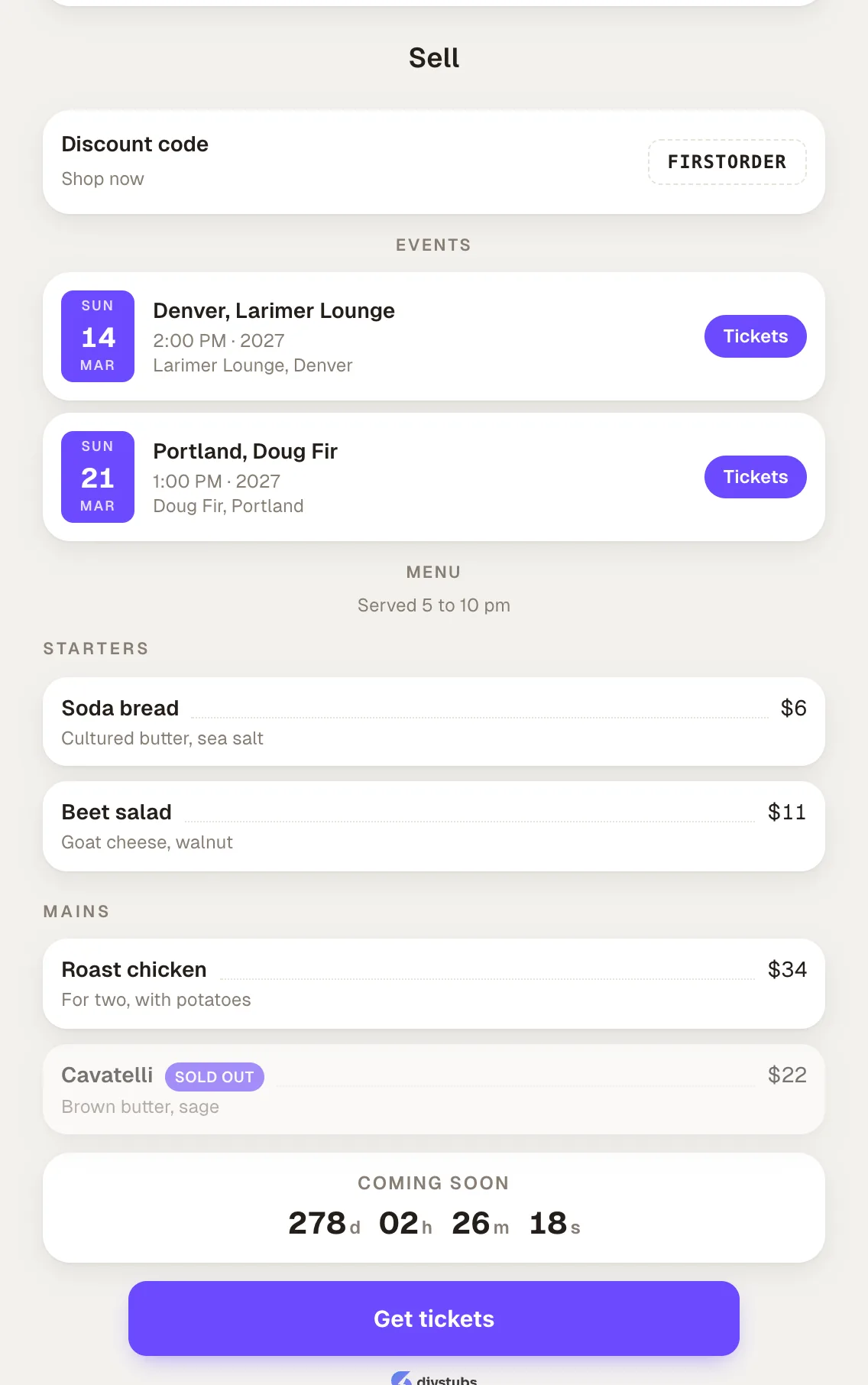
Discount code. Tap to copy, then shop. The code copies to the visitor's clipboard, with an optional link to the store.
-
DIY Stubs. Sell tickets to an event with DIY Stubs, on your page. Paste the event link, then choose Full checkout, which takes the payment on your page, Event info, which lists the date, venue, and prices, or Buy button, a single button that opens the event page. The inspector checks the link and shows you the event it found. It sits on the Integrations shelf under its own name; searching "tickets" finds it too.
For tickets sold anywhere else, use Events: it takes any ticketing address, one per date.
-
Menu (Pro). Dishes or services with prices, as a grid of cards with a photo, a name, a description, and a price. Add section headings such as Starters or Mains, mark anything gone as sold out, and hide an item without deleting it. Tapping a card opens the full photo and description. An optional order button takes a website address or a
tel:number. On Free the block stays in your editor but comes off your page. -
Events. Your dates, with tickets. Each row has a date block, the venue and city, and a button to wherever you sell. Past dates drop off on their own, or you can keep them folded under a Past heading, five by default. Every event keeps the venue's timezone, so an 8 pm show reads 8 pm wherever it is being read.
-
Countdown. Build up to a drop or event. Counts down to a date and time you set, with an optional title for after it arrives and a link to open then.
Embeds
Add an Embed block and paste the URL. It works out the service for itself. Twenty are supported:
Music and audio
- Spotify. Tracks, albums, playlists, episodes, shows, and artists.
- Apple Music. A song or an album. A link to one song out of an album gets the short player.
- Apple Podcasts. A show or an episode.
- SoundCloud. Single tracks and sets.
- Deezer. Tracks, albums, playlists, shows, and episodes.
- Tidal. Tracks, albums, playlists, and videos.
- Audiomack. Songs, albums, and playlists.
- Mixcloud. A mix or a radio show.
Video
- YouTube. Regular videos and Shorts.
- TikTok. A single video.
- Vimeo. A single video.
- Loom. A shared recording.
Posts
- X. One post on x.com or twitter.com.
Booking, events, and forms
- Calendly and Cal.com. Your booking page, filled in without leaving yours.
- Luma. An event, with its date and its register button.
- Eventbrite. An event's checkout.
- Typeform, Tally, and Google Forms. A form, answered in place.
Nothing is fetched from those services until a visitor taps the block. Until then the block is a still frame with a play control, which keeps your page fast and keeps their scripts off it.
The URL field checks itself as you type. If a URL matches none of the patterns above, the field says so, the block stays a draft rather than embedding something urls.bio cannot render, and nothing changes on your public page. Pasting a channel or profile URL where a single video is expected is the usual cause.
Why some services are not on that list. An embed has to be an iframe from an address we have allow-listed. Plenty of services only offer a script that runs on your page instead, and we will not put a stranger's script on a page your visitors load: it is slower, and it is a tracker you did not agree to. Bandcamp is a near miss for a different reason, needing an ID that only lives inside their own page. For all of those, use a Link block set to the Card look, which fetches the destination's own picture and title.
Releases
A Release block is a smart link for a song. You paste one streaming link, say the Spotify album, and the block lists that same record on every other service: Apple Music, YouTube Music, Tidal, Bandcamp, Deezer and the rest. A fan taps the one they already pay for instead of being sent somewhere they cannot play it, and you get one address to put in a bio or a story rather than six.
It is not an Embed. An Embed puts a Spotify player on your page, which is the right block when your whole audience is on Spotify. A Release plays nothing and routes people to their own service.
Add a Release block and paste one link to your record. urls.bio looks it up once and stores what it finds: the title, the artist, the artwork, and a button for every streaming service carrying the same release.
The lookup runs when you paste and never again on its own, because a release's links do not move. Refresh re-runs it if something changed, and the panel says when it last checked.
If the lookup cannot answer, your link is kept as the one service the block has and the panel says so, so you can add the others by hand rather than losing the paste.
Each service has a Shown or Hidden control. Hide the ones you do not want listed and they stay in the editor. The order visitors see is the order in the panel, with one exception: whichever service somebody last used moves to the top for that person. That is remembered in their own browser, never sent anywhere, and changes nothing for anyone else.
Every tap is counted as a click on the block, so analytics shows how the release did.
Sensitive content
Two separate controls, because they answer different questions.
One picture. In a gallery, each image has an 18+ switch on its row. Only that picture is blurred; the rest of the set shows as normal, and tapping the blurred one asks for an age. A picture that has not been unlocked never appears in the full-screen viewer either, so swiping through cannot land on it.
One block. Open any block and turn on Sensitive. Its pictures, video and embeds are blurred for visitors, with an "18+, tap to view" badge in the corner, and tapping it asks them to confirm their age before it opens. The block's title stays readable, and the rest of your page is untouched. Every block type has this switch, not just links.
The whole page. In your profile panel, turn on Age-gate my whole page. Visitors then see nothing at all until they confirm, which is the right setting for a page that is adult from top to bottom.
A visitor confirms once per profile. That one confirmation opens the page gate and every blurred block behind it, and it is remembered for three days. It is per profile on purpose: agreeing on your page says nothing about anybody else's.
You are never asked on your own page.
Tabs
Pro pages can split their blocks into up to three tabs, each with its own name and its own list. Visitors get a strip under your header and see one list at a time, so a band can keep Music, Shows, and Merch apart without running three pages.
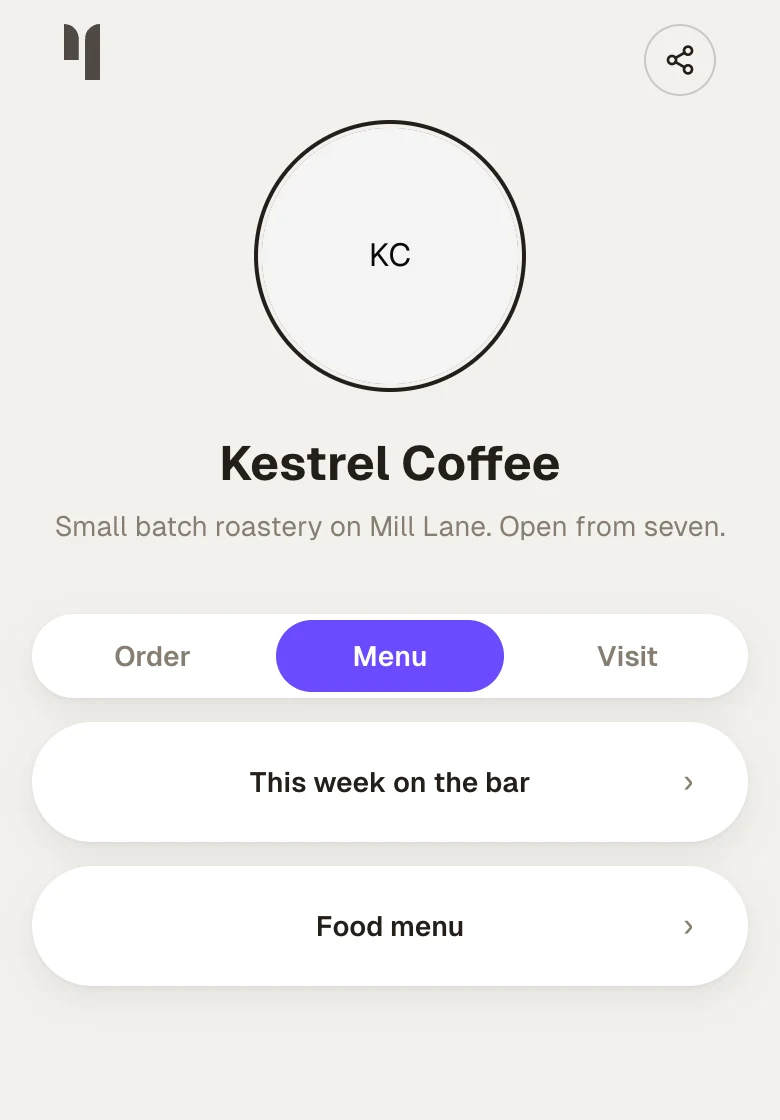
Press + Tab above your blocks. The first tab takes everything already on your page and is called Links until you rename it; the second opens with its name selected, ready to type over. Names are up to twelve characters, which is what fits three of them across a phone.
The strip takes its shape and colour from your Buttons style, so it belongs to the page rather than sitting on top of it. See design.
Selecting a tab in the Studio filters the block list and the page in the middle together, and a new block lands in the tab you have open. To move a block, use Move to in its row menu, or the Tab row in its settings. A group moves with everything inside it.
Each tab has its own menu with Rename, Move left, Move right, and Delete. Deleting a tab never deletes blocks: they move to the first tab, and the toast offers Undo.
Visitors land on the first tab unless the address names another. urls.bio/yourname#shows opens on Shows, and switching tabs updates the address, so a visitor who copies what they are looking at copies the tab as well.
A tab with nothing to show is hidden from visitors, and a page with one tab shows no strip at all. If your Pro plan ends your tabs are kept, and visitors see every block in one list until it comes back.
Hiding, scheduling, and the 18+ gate
Every block has a Show on my page switch, in its settings and again on its row in the block list. Turn it off and the block stays in your list, reading "Hidden", but leaves the page.
Blocks that are already published can be scheduled with Only during a window, dividers aside. Turning it on reveals From and Until underneath. Set one, the other, or both, down to the minute in your own timezone, and leave them empty for always. An end on or before the start is refused with "The end time must be after the start time." The block list reads "Scheduled" with the date, or "Expired", so you can see at a glance why something is missing. Turning the switch off clears both dates rather than leaving a window nobody is honouring.
Link, embed, and image blocks have Ask visitors' age first, labelled 18+ gate. Turn it on and visitors confirm their age before they see anything. If any block on your page is gated, the whole list is held behind one confirmation, and that confirmation is remembered on their device for three days. You are never gated out of your own page.
Pro upgrades on a link
Open any link block and an Upgrades section sits under its settings, with two sections that fold open. On Free they are both there and both dead, with a Pro chip on the heading and a line at the bottom reading "Upgrade to turn these on"; seeing what you would be switching on is the argument for switching it on. The Card look is not one of them: it is free, on every link, in the Look row above.
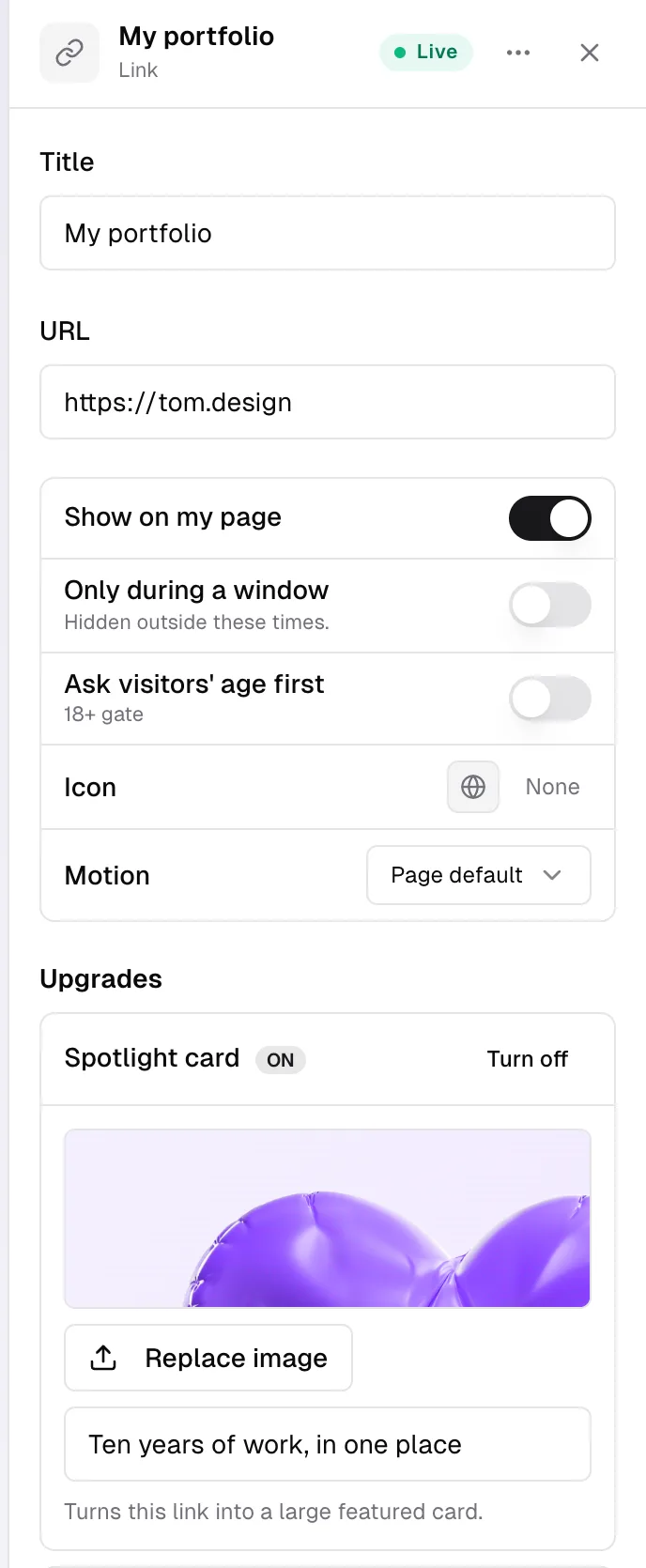
- A/B test. Give a second title and address, and half of visitors see each version. The panel shows the running count, "A: 12 clicks · B: 9 clicks", so you can call it yourself.
- Limit clicks. The link closes after that many clicks, and the panel tells you how many it has taken so far.
Each one shows an On badge once it is doing something, and a Turn off button that clears it.
Block details
Link, file download, embed, tickets, discount code, and direct chat blocks carry a small i on the public page. On a phone it is always there, at the edge of the row; with a mouse it appears when the pointer is over the block, and a right-click on the block opens the same thing. Tapping it opens the block's details: a bottom sheet on a phone, a card in the middle of the page on anything wider. The sheet is drawn in urls.bio's own colours and follows the reader's light or dark setting, so it stays readable over any page you build, and it is clearly a panel rather than part of your page.
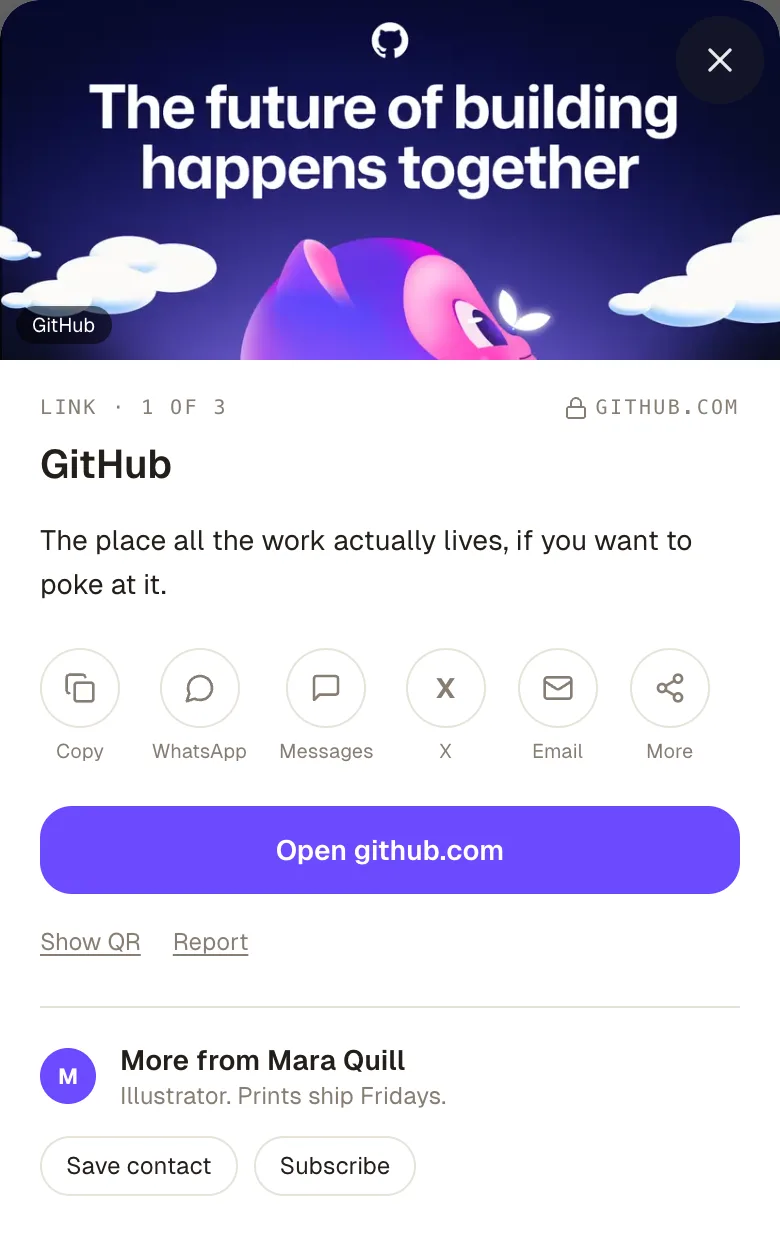
Top to bottom, the sheet holds:
- The preview. The picture the destination publishes for itself, with the site's name over it. A picture you uploaded under Cover replaces it. When a site has no picture, a tile with its icon and address stands in.
- Where it goes. The block type, its place on the page ("2 of 6"), the site's address, and a lock when the address is https. For a file this is the file name and size; for tickets it is the event.
- Your note, if you wrote one, otherwise the site's own description in a quieter colour.
- Share. Copy, WhatsApp, Messages, X, Email, and More, which opens the phone's own share sheet. Every one of them sends the destination address, not your page, with your note as the message. Copy reads "Copied" for a couple of seconds.
- Open, named for the destination: "Open cal.com", "Download", "Get tickets", "Copy code", "Message". It counts as a click, exactly like tapping the block.
- Show QR, Report, and, inside another app's browser, Open in browser.
- More from you. Your avatar, your name, the first line of your bio, Save contact, and Subscribe when your page has an email capture block. This strip is yours; there is no urls.bio promotion in the sheet on any plan.
Swiping sideways on a phone, or the arrows on desktop, moves to the next block that has details, so a visitor can flip through your links without closing the sheet. Blocks that do not have details (headings, text, polls, forms, and anything with its own full view such as a menu or a gallery) are skipped.
The note and the preview
Open one of those blocks in the Studio and two things sit under its address:
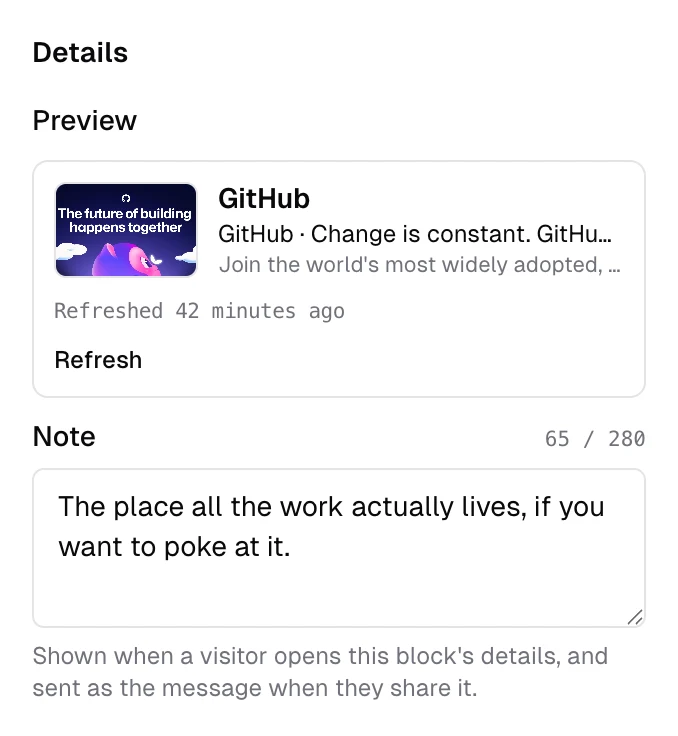
- Preview shows what was fetched from the destination: its picture, name, title, and description, with when it was last read. The page is read once when you save the address, and again when you press Refresh, never on a schedule, so a changed product page keeps its old picture until you refresh it. Only https addresses are read. The picture is copied into your own storage rather than loaded from the other site every time your page opens. Use my own image switches the block to the Card look and opens the Cover picker, so the picture you choose is the one on your page and in the sheet.
- Note is a sentence of your own, up to 280 characters, shown in the sheet and sent as the message when a visitor shares the link. "The code is in the description." "This one is the paperback." "Book here, not DMs." It is on Free and on Pro.
The whole thing can be turned off for your page with Block details in the Design panel, under Buttons. Off hides the small i everywhere and disables the sheet; the notes and previews stay saved. See design.
Common questions
Why does a link's preview show the wrong picture? Press Refresh under Preview to read the page again. If the site's own picture is simply not the one you want, use Upload under Cover to put your own there instead. It is free, on every link.
Can visitors share my page from the sheet? The sheet shares the link's destination. The round share button at the top of your page is the one that shares the page itself; see sharing.
Can I have more than three tabs? Three is the cap. Past that a strip stops being readable on a phone, and the page starts asking visitors to hunt rather than to choose.
Where did my blocks go when I deleted a tab? To the first tab, all of them. Nothing is deleted with a tab, and the toast that appears offers Undo if you wanted the whole thing back.
Why is my block not on the public page? Check the chip in the block list. "Needs" and then a field means it is still a draft, "Hidden" means Show on my page is off, and "Scheduled" or "Expired" means the dates are keeping it away.
How many blocks can I have? There is no cap on either plan.
Which blocks are Pro? Five: gallery, file download, voice intro, contact form, and menu. Everything else is on Free. See plans and billing.
Can I see all of this working? urls.bio/demo is a live page with links, a YouTube embed, and the email gate turned on.
Something is not appearing at all. See troubleshooting.