Newsletter
See the feature page: newsletter.
Collecting addresses is half of it. The Newsletter tab is the other half: write a post, see exactly who it reaches, send it, and read what happened. It goes out from your own sending address, so replies come back to you rather than to us.
Writing posts is part of Pro. Collecting addresses is not; email capture and audience work on every plan.
Turning Emails on
Open Settings and find the Emails row.

Switching it on opens Turn Emails on, which asks for three things and then goes away and builds you a sending address on a subdomain of your handle. That takes about fifteen minutes and happens on its own.
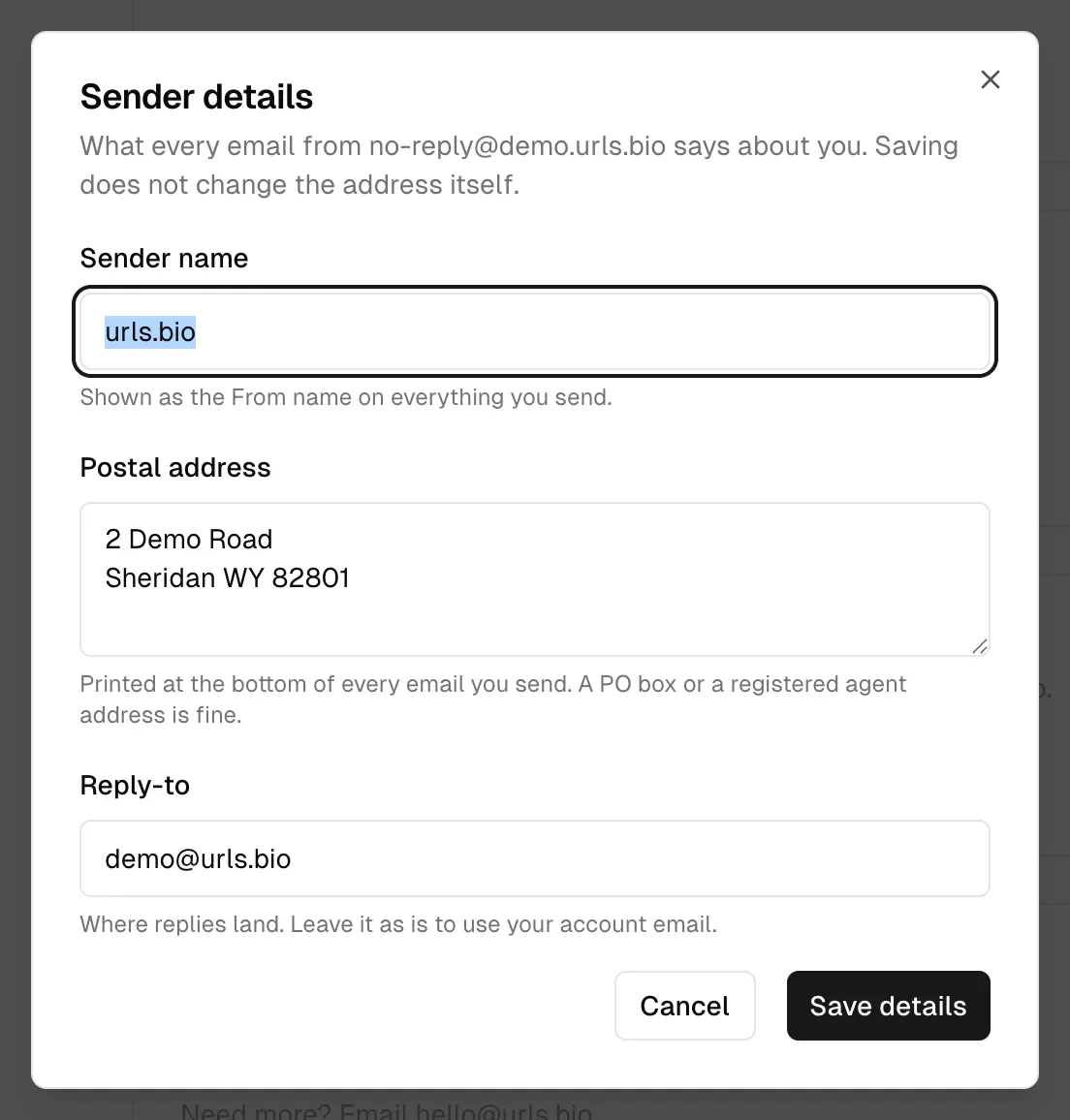
- Sender name. The name your list will recognise. It is shown as the From name on everything you send.
- Postal address. Printed at the bottom of every email you send. A PO box or a registered agent address is fine. This one is not a preference: anti-spam law in most countries requires a real physical address in bulk email, and the From has to say who it is from. A URL is refused, and so is a single line with no number in it.
- Reply-to. Where replies land. Leave it as it is to use your account email.
While the address is being set up, the row shows a Pending chip and the line "Usually ready within about 15 minutes, we will email you." When it verifies, we send you one email, subject "Your emails are ready to send", and the chip turns to Active with the address under it.
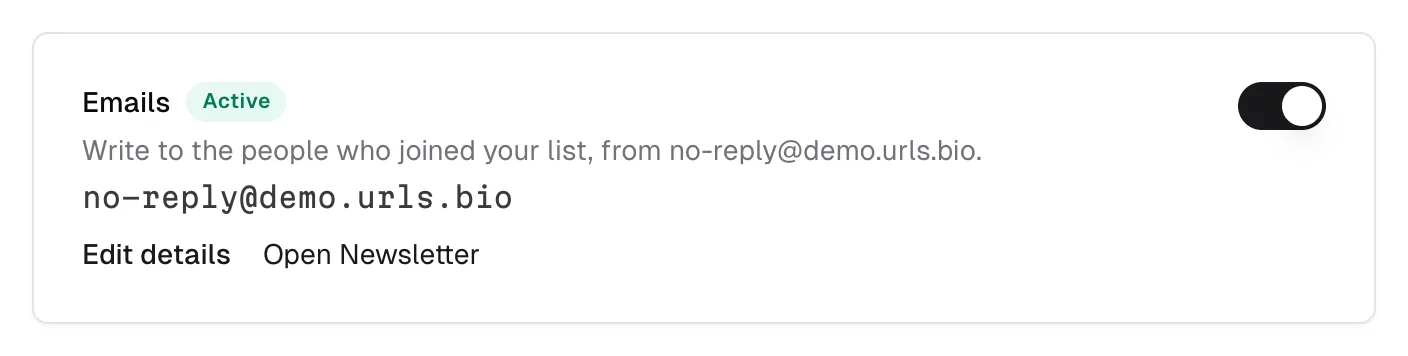
Edit details reopens the same three fields. Saving them changes what your emails say about you; it does not change the address itself.
If something goes wrong at the DNS end, the chip reads Failed with the reason under it and a Retry button beside it. Retry is the whole fix; there is nothing for you to configure.
Switching Emails off again stops everything: "Nothing scheduled will go out until you turn it back on."
The Newsletter tab
Once the address is Active, Newsletter appears in the sidebar.
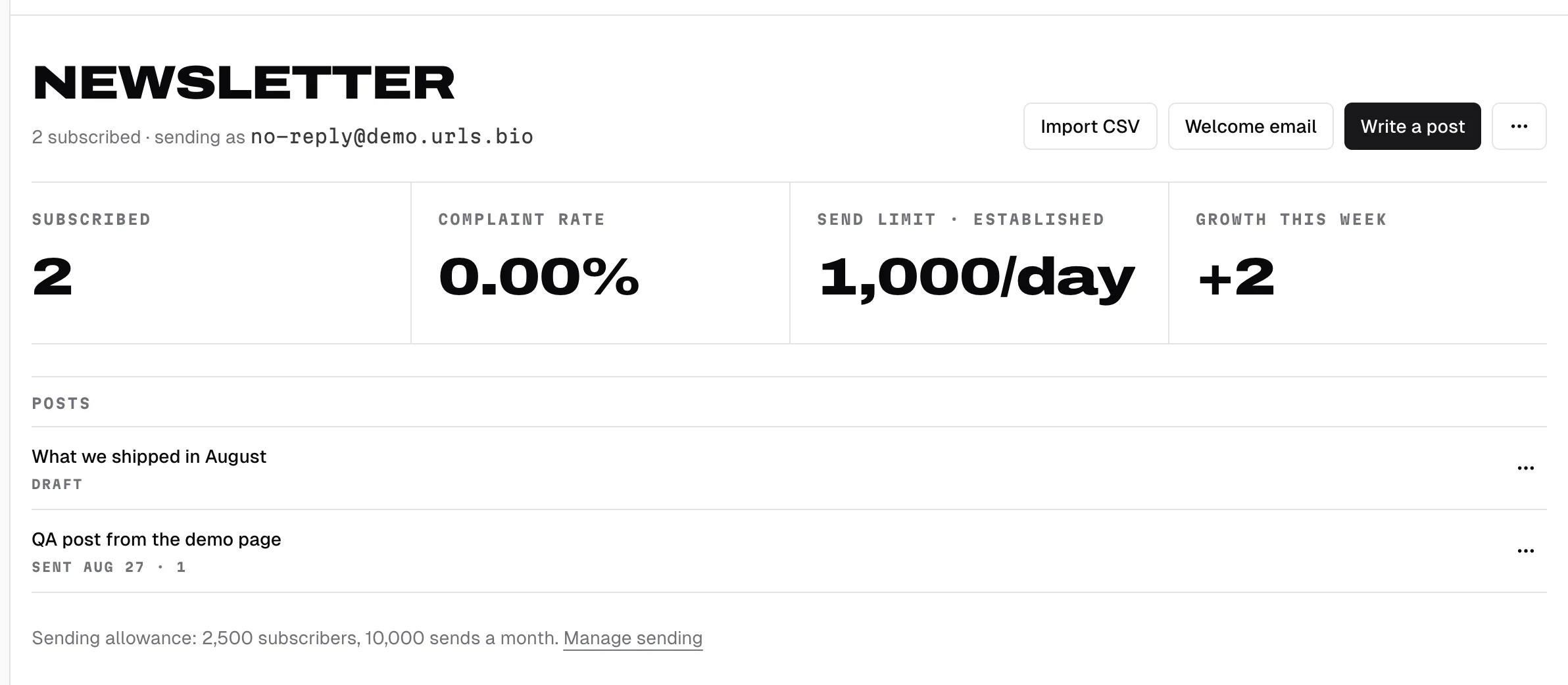
Under the heading is the count of who is subscribed and the address you send as. Four numbers sit below it:
- Subscribed, the people a post would reach.
- Complaint rate, the share of your recent recipients who reported a post as spam.
- Send limit, with the word for where your sending stands after it, and how many emails a day you can send right now.
- Growth this week.
The allowance is spelled out at the bottom of the tab: Pro includes 250 subscribers and 1,000 sends a month.
The three dots beside Write a post hold one setting, Show sent posts on your page, covered under the archive.
Your daily limit warms up
New sending addresses are not trusted by inboxes, and sending a lot from one on day one is the fastest way to end up in spam folders. So the limit starts at 500 emails a day, whatever plan you are on, and doubles after each clean send, up to 20,000 a day.
A send counts as clean when fewer than 0.1% of its recipients report it as spam and fewer than 2% of it bounces, and when it did not trip any of the pauses below. After five clean sends, and once the address is thirty days old, it is treated as established.
This is why a big list takes a few posts to reach in one day rather than two. The send sheet tells you when a post is going to be split, and the rest goes the next day on its own.
Writing a post
Write a post opens the editor.
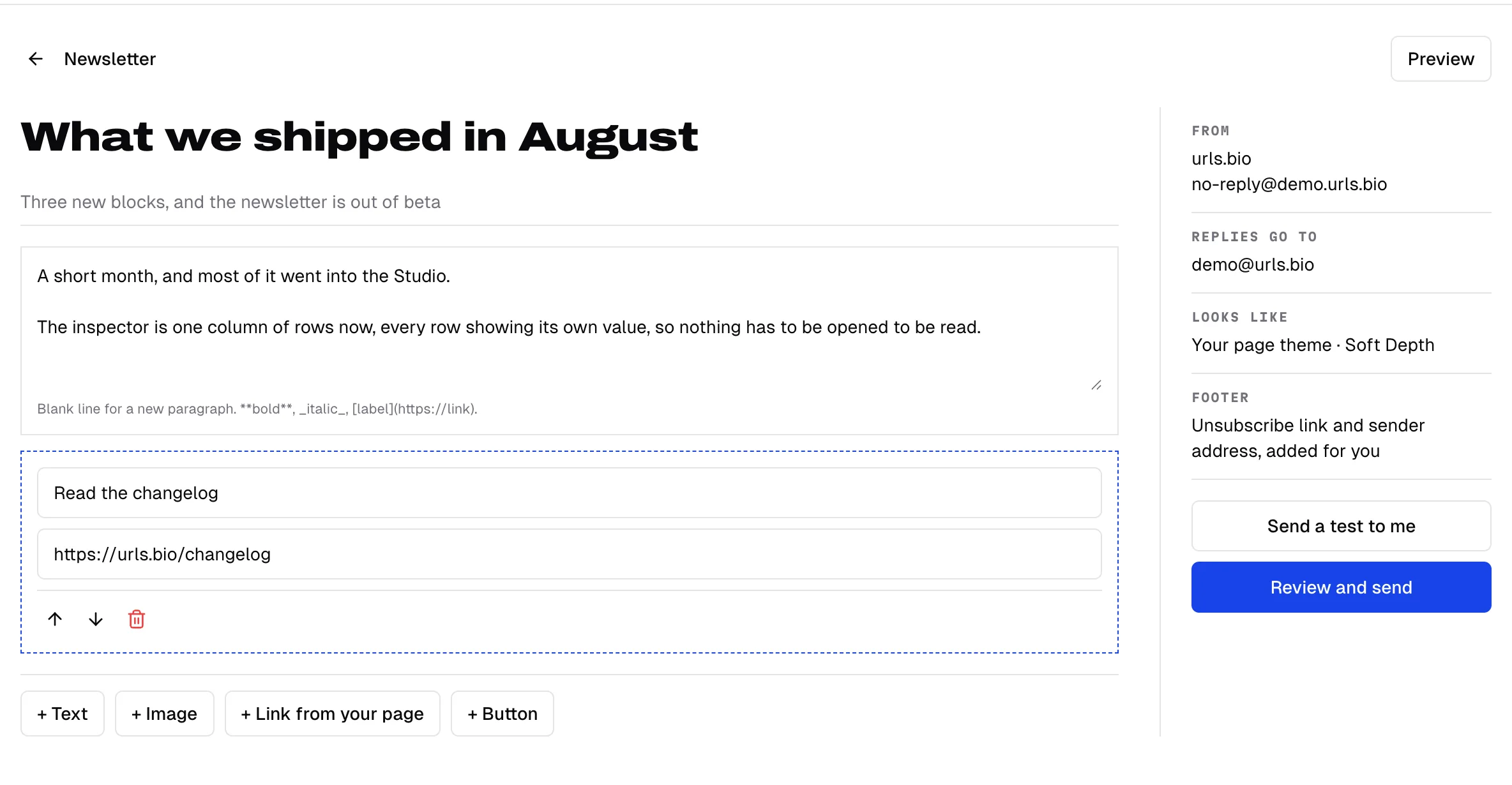
The subject is the big field at the top and the preview line under it is what an inbox shows next to it. Both take up to 200 characters.
A post is built out of four block types and nothing else:
- Text, with a small amount of markdown:
**bold**,_italic_, and[label](https://link). A blank line starts a new paragraph. - Image, with a description for anyone who cannot see it.
- Link from your page, which picks a block that is already on your page so the two never drift apart.
- Button, a label and an address.
There is no template picker and no font control. A post looks like your page, because it is built from your page's theme, and the right-hand rail tells you the rest of it: who it comes from, where replies go, which theme it is wearing, and that the unsubscribe link and your postal address are added for you.
Shortened links are refused with "Shortened links are not allowed in posts. Use the full address." Inboxes treat them as a spam signal, and one bad link costs the whole domain.
It saves as you type. Only a draft is editable; a scheduled post is read only until you cancel it, and a sent one opens its report instead.
Send a test to me puts the post in your own inbox, subject prefixed with [Test], up to ten times an hour. It is worth doing once per post: what looks right in the editor and what looks right in Gmail are two different questions.
The send plan
Review and send opens a sheet that counts your list as it stands, right then.
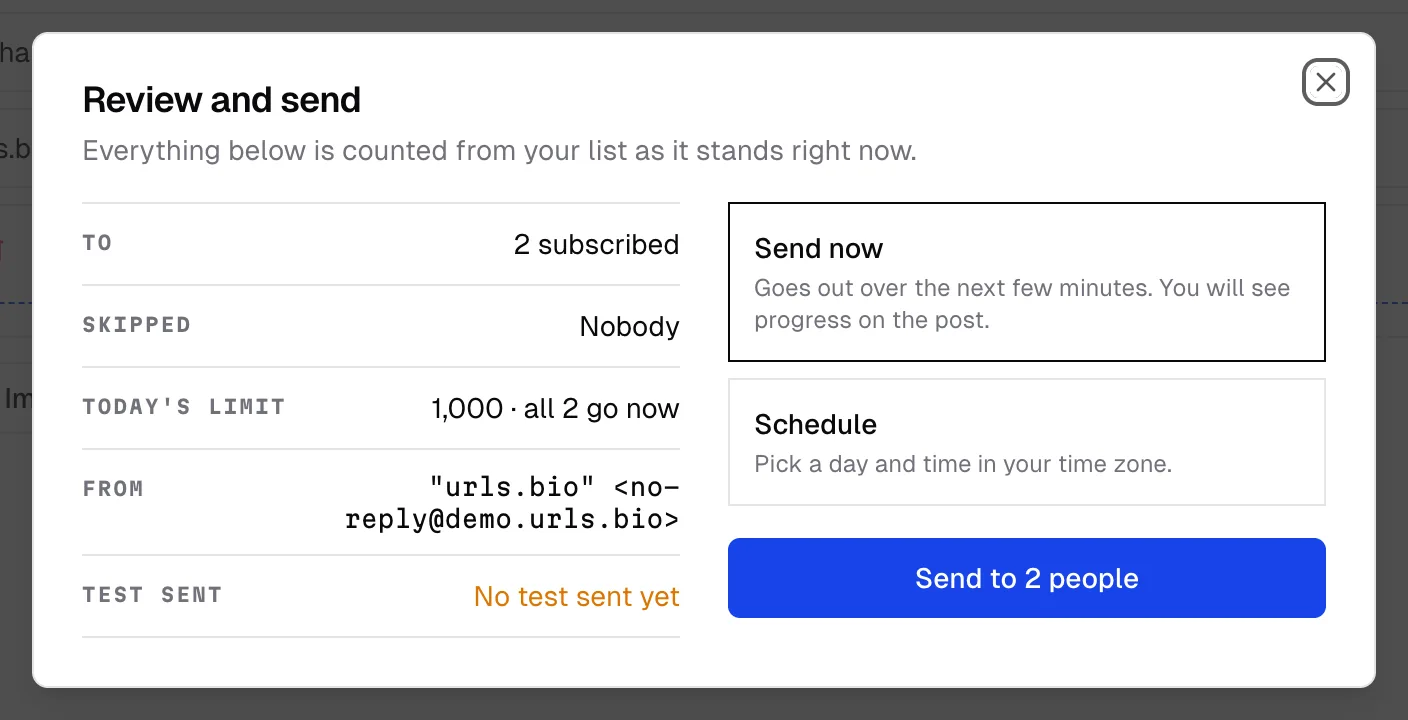
- To is how many subscribed people it reaches.
- Skipped names everyone it does not, and why: confirming, unsubscribed, bounced, marked spam, and over your plan. "Nobody" means nobody.
- Today's limit is your daily cap, and whether the whole list goes now or part of it goes tomorrow.
- From is the address it sends as.
- Test sent says when you last sent yourself one, and reads "No test sent yet" in amber if you have not.
Above the send options, once you have any groups, is Audience: a chip for Everyone and one for each group. Everyone is the default. Press more than one and the post goes to all of them, counted once, and the rows recount as you press. Up to twenty at a time; past that, "Pick up to 20 groups, or send to everyone."
Choosing groups changes who it reaches, never who has consented. The To row says so in words, "184 people in VIPs and Beta", and if none of them have confirmed yet the button is replaced by "Nobody in VIPs has confirmed their subscription yet." The Skipped row keeps counting your whole list rather than the chosen groups, so it stays a picture of your list rather than of this send.
On the right, Send now goes out over the next few minutes, with progress on the post itself. Schedule takes a day and a time in your own time zone, up to thirty days ahead.
The button says exactly what it will do: "Send to 412 people".
If something is in the way, the button is replaced by a sentence saying what. A missing subject, an empty post, no postal address, nobody confirmed yet, the free post for this month already used, more subscribers than your plan covers, or your monthly sends spent. Each one names the fix.
Cancelling a scheduled send is the three dots on the post, or the Cancel button on the banner in the editor. It goes back to being a draft. Once a post has started going out it cannot be cancelled, because some of it has already arrived.
The report
Opening a sent post shows what happened. Five numbers, all measured against what actually went out rather than against your whole list.
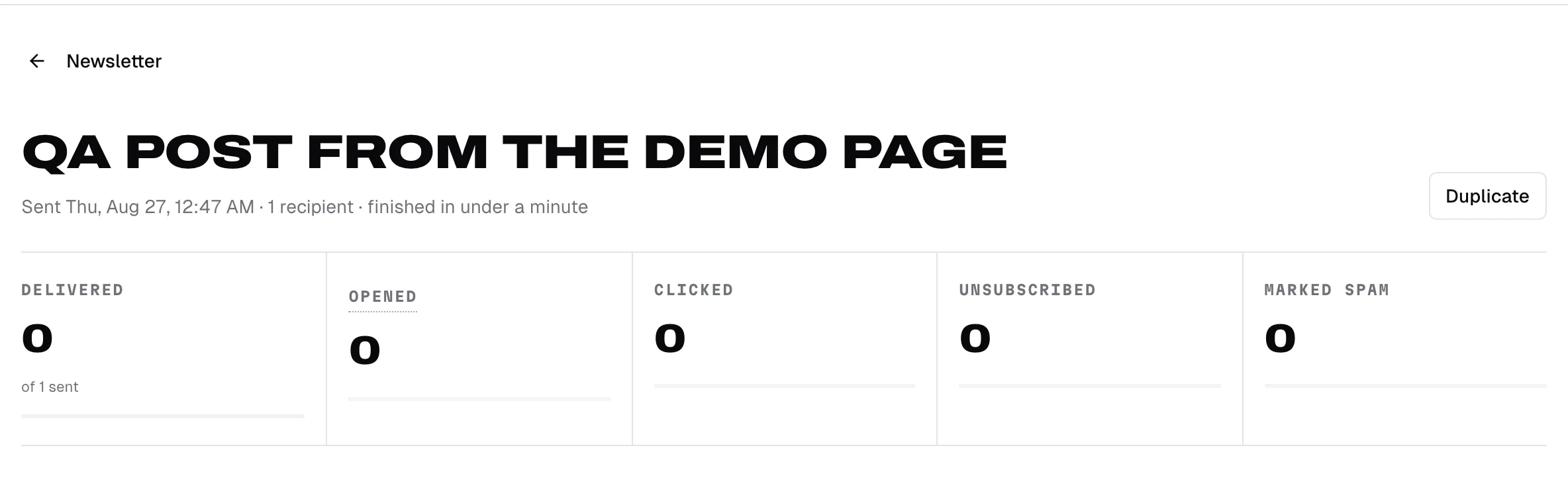
- Delivered. Accepted by the receiving server. The note under it says how many were sent.
- Opened. Approximate, and deliberately labelled as such. Apple Mail's Privacy Protection fetches the tracking pixel for every message whether or not anybody read it, so this number is high for any list with iPhones on it. Treat it as a direction, never as a count.
- Clicked. Somebody tapped a link in the post. This is the honest engagement number.
- Unsubscribed. People who left from this post.
- Marked spam. People who reported it. This is the number that decides whether you keep sending.
The line under the title says when it went, how many it reached, how long it took, and, if you sent to groups, which ones: "Sent 4 Sep · 184 recipients in VIPs · finished in 6 min". That is the audience the post was addressed to, frozen at the moment you sent it, so editing a group afterwards changes the next post rather than this one. A post still going updates while you watch.
When sending pauses
Sending stops on its own when a post goes badly enough that continuing would hurt every creator on the platform. The post's row says which line it crossed:
- Too many spam reports. More than 0.3% of recipients reported it. On a list under 200 recipients the check is a count instead: three reports.
- Too many addresses bounced. More than 5% of it bounced.
- Too many people unsubscribed. More than 5% of recipients left.
Bounce and unsubscribe rates are only judged on sends of at least 25 recipients, because a rate out of six people is not a rate.
A pause is not one post. It stops everything scheduled, and the Newsletter tab carries a line saying which rate tripped and what the limit was, with an address to write to. There is no resume button, on purpose: unpausing is somebody reading the account, and a button that pretended otherwise would be a lie the moment you pressed it. Email hello@urls.bio and we will look.
Two other pauses are yours to clear rather than ours:
- Paused: sending address. The post was ready before the domain was. It resumes on its own once the address verifies, within a day of the scheduled time.
- Paused: deliveries failed. It reached nobody. The three dots offer Send again, or Cancel to put it back to a draft.
If you come back from a pause, your daily limit starts again at 500. Whatever earned the pause also earned warming up again.
Allowances
Sending is part of Pro. Collecting is not, so a free page can build a list for as long as it likes and start writing to it whenever it upgrades.
Pro includes 250 subscribers and 1,000 sends a month. Sends reset on the first of the month, counted in UTC. A post to 200 people spends 200 of them.
A real list buys More sending, under Sending in Settings, billed monthly on top of Pro. Each step is a whole ceiling, not an addition:
| Tier | Subscribers | Sends a month | Price | | --- | --- | --- | --- | | More sending S | 2,500 | 10,000 | $19 | | More sending M | 10,000 | 40,000 | $79 | | More sending L | 25,000 | 100,000 | $199 |
The send sheet links to it when you get close. The tiers are bought on the web; the iOS app shows your ceiling but does not sell against it.
If Pro lapses, nothing is lost and nothing is sent. Your sending address, your sender details, your posts, and your list all stay exactly as they are, and everything comes back the moment the subscription does.
The public archive
Sent posts can also live on your page. The three dots at the top of the Newsletter tab hold Show sent posts on your page, and it is off until you turn it on.
With it on, your page grows a Posts section listing your ten most recent, and each one gets its own address:
urls.bio/yourname/p/what-we-shipped-in-augustThe address is worked out from the subject the first time the post sends, and never again, so fixing a typo in a subject does not break a link somebody has already shared. Each post renders in your page's theme with a form at the bottom for anyone who wants the next one.
Turning the setting off takes them all down again, and those addresses return a not-found page rather than an empty one.
Unsubscribing
Every post and every welcome email carries two ways out: the link in the footer, and the one-click header that Gmail and Apple Mail turn into an Unsubscribe button next to your name. Both work without a login and take effect on the spot.
The person is moved to Unsubscribed in audience, never receives another post, and cannot be brought back by an import. Nothing else about them changes, and your page stays open to them.
Making that easy is in your interest. Somebody who cannot find the way out reports the message as spam instead, and spam reports are what pause your sending.
Common questions
Why can I not see the Newsletter tab? It needs three things: Pro, Emails switched on, and the sending address verified. Settings tells you which one is missing.
Can I send to people who have not confirmed? No. Only confirmed subscribers are ever mailed, which is why the send sheet lists the confirming ones under Skipped.
Why is my open rate so high? Apple Mail Privacy Protection opens messages that nobody read. Use clicks for anything you plan to act on.
Can I change the address my posts come from? The name and the reply-to, yes, in Edit details. The sending address itself is derived from your handle and is not editable.
I sent a post and the report shows zero delivered. Delivery figures arrive from the receiving servers over the following minutes and hours, so a report read straight after sending is usually early rather than wrong.